Amazon RDS Logs Ingester
Overview
This Helm chart deploys the RDS Logs Ingester, a tool designed to fetch logs from Amazon RDS instances and optionally forward them to a Loki instance for log management. The deployment is configurable, allowing users to specify RDS instances, Loki API credentials, and resource limits.
Key Features:
- Fetch logs from specified RDS instances.
- Optional integration with Loki for log forwarding.
- Support for custom labels on top of ingesting the RDS instance tags
- Configurable via Helm values for easy customization.
Configuration
Prerequisites:
- If using AWS AccessID/SecretKey credentials: A Kubernetes secret named
aws-credentialscontaining AWS access keys and region. Use the following command to create a generic secret to store theAWS Credentials:
kubectl create secret generic aws-credentials --from-literal=AWS_ACCESS_KEY_ID=<redacted> --from-literal=AWS_SECRET_ACCESS_KEY=<redacted> -n <namespace>
- If using Service Account based auth, an IAM role ARN with the appropriate permissions/policies attached to be able to interact with the API
- Note: It is recommended to use Service Account based auth as a better security practice
- If storing the AWS credentials in a secret, consider implementing sealed secrets for much greater security: Sealed Secrets
- An image pull secret for accessing the private Docker registry (included in the helm chart)
Creating a Role with OIDC Web Identity for Kubernetes Authentication in AWS EKS
This guide outlines the process for creating a role with OIDC (OpenID Connect) web identity in AWS EKS (Elastic Kubernetes Service), attaching policies, and configuring a Kubernetes service account for authentication.
Step 1: Create a Role with OIDC Web Identity
Navigate to IAM
- Open the AWS Management Console.
- Access the IAM (Identity and Access Management) service and follow the steps presented in the following AWS documentation to create a new IAM Role:
- Check if the Kubernetes cluster already has an associated OIDC URL. If one is not associated with the cluster, use the following steps to create a new one:
Create Role Flow:
Configure Trusted Entity and Audience
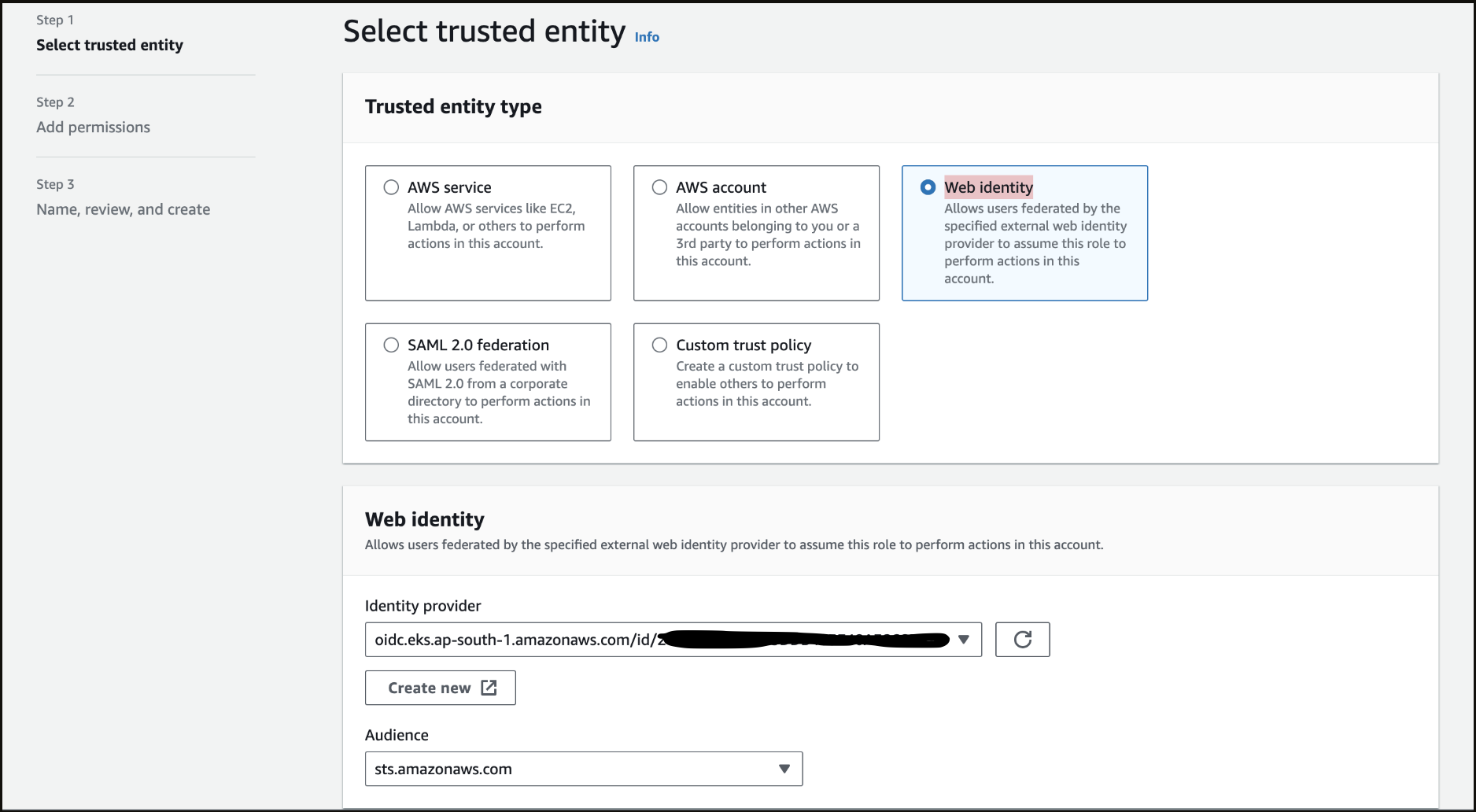
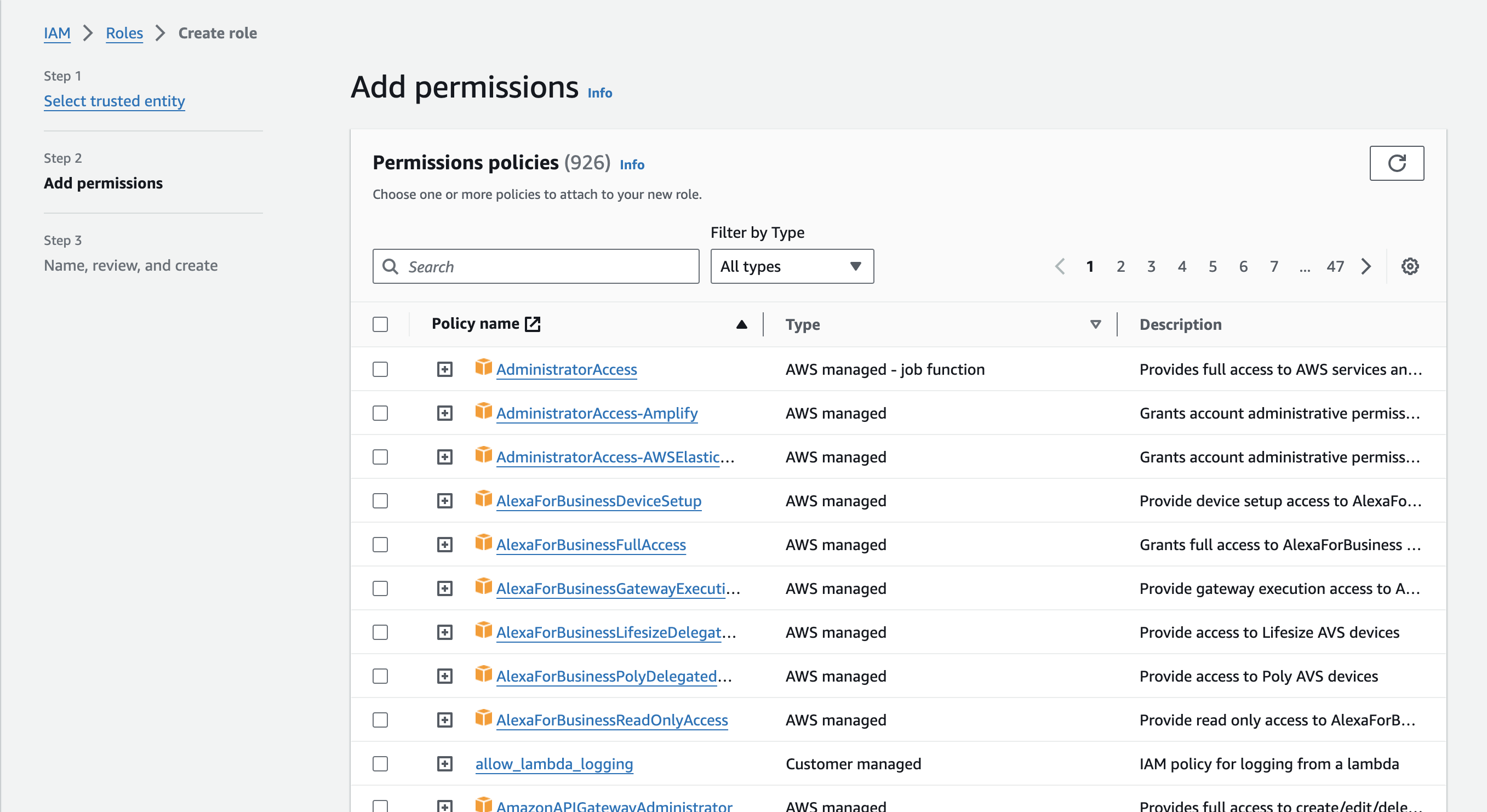
Attach Policies
skip this part as we will be adding custom minimal permissions later on, post role-creation.
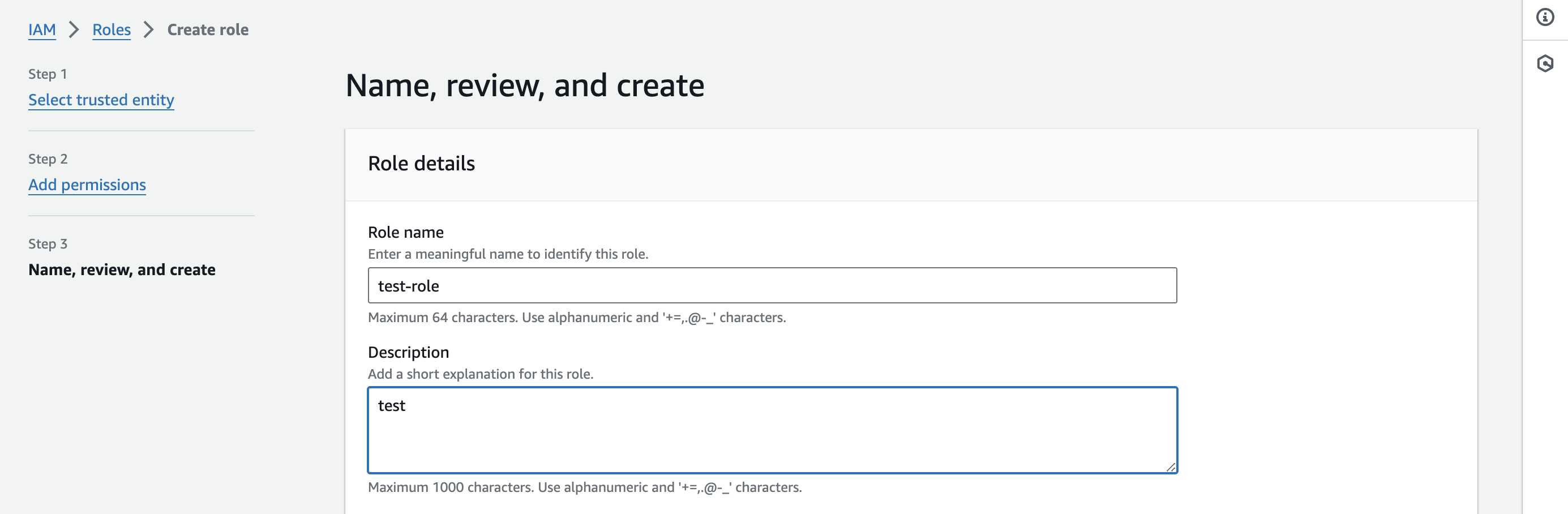
Review and Create Role
Click Next: Tags (optional), then Next: Review and Create
Step 2: Attach Custom Policy to the Role
Attach Custom Inline Policies
- After following the above step to create a role, navigate to the newly created role to add custom permissions:
click on the Add permissions option and select Create inline policy
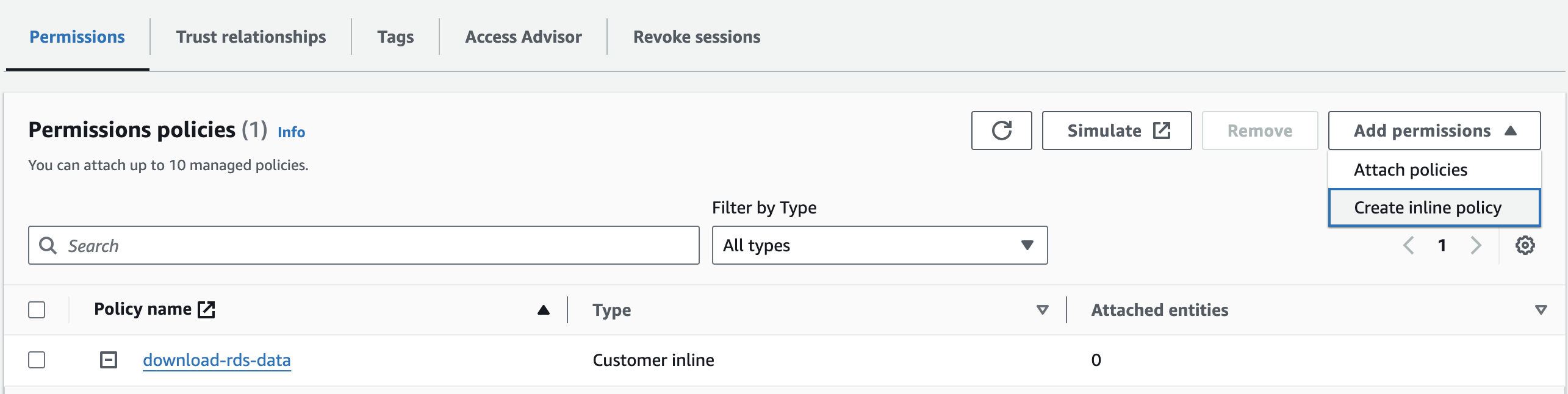
use the following inline policy to set permissions:
  {
    "Version": "2012-10-17",
    "Statement": [
      {
        "Effect": "Allow",
        "Action": [
          "rds:DownloadDBLogFilePortion",
          "rds:DescribeDBLogFiles",
          "rds:DescribeDBInstances"
        ],
        "Resource": "arn:aws:rds:*:<12_digit_aws_account_id>:db:*"
      }
    ]
  }
Step 3: Verify Trust Relationship and Policy
- Go to the Trust relationships tab.
- Confirm the correct OIDC details.
use the following template to edit the Role's Trust Relationship:
    {
      "Version": "2012-10-17",
      "Statement": [
          {
              "Effect": "Allow",
              "Principal": {
                  "Federated": "arn:aws:iam::<AWS_ACCOUNT_ID>:oidc-provider/<OPENID_CONNECT_URL>"
              },
              "Action": "sts:AssumeRoleWithWebIdentity",
              "Condition": {
                  "StringEquals": {
                      "<OPENID_CONNECT_URL>:aud": "sts.amazonaws.com",
                      "<OPENID_CONNECT_URL>:sub": "system:serviceaccount:*:rds-ingester-sa"
                  }
              }
          }
      ]
    }
Note: do not include the https: prefix when using the OIDC URL from the EKS console:
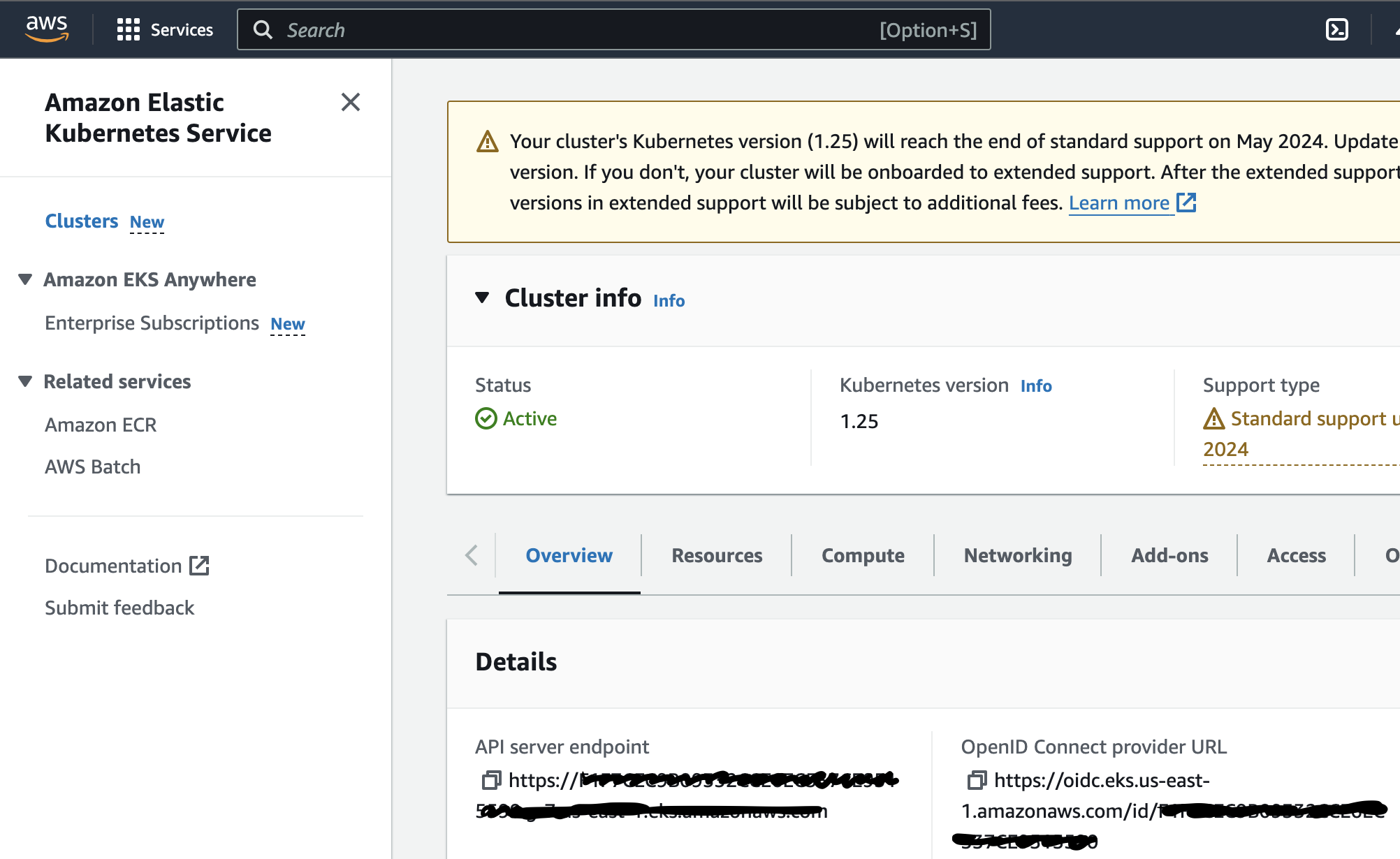
Step 4: Associate Role with Kubernetes Service Account and Configure Chart Values
Configure Service Account in Kubernetes
- Annotate the service account field in
values.yamlwith the IAM role ARN - add the ARN value under the
serviceAccount.aws.roleArnfield
  RDSLogsIngester:
    replicaCount: 1

    namespace: stage

    serviceAccount:
      details:
        name: rds-ingester-sa
        tokenName: rds-ingester-token
      aws:
        roleArn: "arn:aws:iam::<AWS_ACCOUNT_ID>:role/<ROLE_NAME>"

  ... rest of values
you can find the roleArn value in the summary section of the role console:
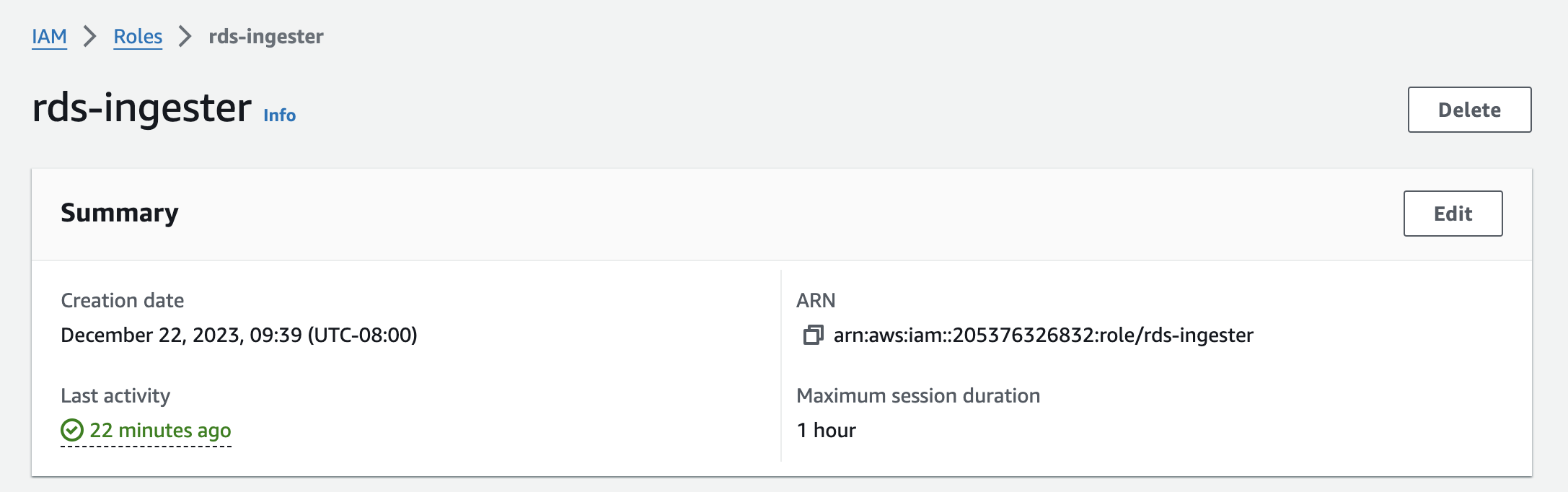
:
Configurable Values:
In the values.yaml file, users can configure
dbInstancesRDS instances to be monitoredreplicaCount: Number of pod replicas.serviceAccount: Specifies the service account details.configMap: Contains configurable parameters such as Loki API information.image: Docker image details including the repository, tag, and pull secret.awsCredentialsSecret: The name of the secret containing AWS credentials.namespace: Kubernetes namespace for deployment.resources: Resource requests and limits for the pod.
Database Instances: You can define multiple RDS instances under dbInstances with specific identifiers, regions, and log file filters. Customize the labels for each database to categorize your logs effectively.
Loki Integration: The chart is configured to push logs to Loki. Credentials for Loki are specified under the loki.credentials field. This is crucial for secure and efficient log management.
Service Account and AWS Role: A Kubernetes service account linked to an AWS IAM role (rds-ingester-sa) is used for AWS operations.
Resource Requests and Limits: Set under resources, these parameters ensure efficient utilization of your cluster's resources.
Customization Options: Modify values such as replicaCount, namespace etc. as per your requirements in a custom values.yaml
Example values.yaml configuration:
RDSLogsIngester:
  replicaCount: 1

  namespace: stage

  serviceAccount:
    details:
      name: rds-ingester-sa
      tokenName: rds-ingester-token
    aws:
      roleArn: "arn:aws:iam::<AWS_ACCOUNT_ID>:role/rds-ingester"

  configMap:
    basic:
      name: rds-config
    dbInstances:
      - identifier: rds-test-db-1
        region: us-east-1
        # These labels will be added to the log line before they are sent to the output destination
        labels:
          env: prod
          #change the key (ex, label1) as well
          testlabel: prod
          label2: value2
        # This filter is used to filter the RDS log files that are scraped
        logFileFilter: "slow-query-.*"
      - identifier: rds-test-db
        region: us-east-1
        # These labels will be added to the log line before they are sent to the output destination
        labels:
          env: prod
          testlabel: prod
          label2: value2
        # This filter is used to filter the RDS log files that are scraped
        logFileFilter: "error.*"
    output:
      writeToStdout: "true"
      loki:
        writeToLokiApi: "true"
        host: "<redacted>"
        credentials:
          loki_username: "<username>"
          loki_password: "<password>"
          secretName: loki-remote-write-credentials

  image:
    details:
      repository: registry.devopsnow.io/public/opsverseinc/rds-logs-ingester
      tag: sa-v18
    pull:
      secret: devopsnow-private-docker-reg-crd-rds-ingester

  resources:
    requests:
      memory: "64Mi"
      cpu: "250m"
    limits:
      memory: "128Mi"
      cpu: "500m"
Deploying the Chart
To deploy the chart, use the following commands:
Using custom values.yaml:
helm upgrade --install rds-logs-ingester -n <namespace> --create-namespace <namespace> \
    --repo https://registry.devopsnow.io/chartrepo/public \
    -f rds-ingester-values.yaml
Additional useful helm commands:
# Package the chart
helm package [CHART_PATH] --version [VERSION]

# Install the chart
helm install [RELEASE_NAME] [CHART_PATH] --namespace [NAMESPACE]

# Upgrade the chart
helm upgrade [RELEASE_NAME] [CHART_PATH] --namespace [NAMESPACE]

# Rollback the chart
helm rollback [RELEASE_NAME] [REVISION]
Resources Created by the Chart
The Helm chart creates the following Kubernetes resources:
- Deployment: Manages the lifecycle of the RDS Logs Ingester pods.
- ServiceAccount: Manages identity for processes that run in a Pod.
- ConfigMap: Contains non-confidential data in key-value pairs.
- Secret: Manages sensitive information, such as passwords and tokens.
Additional Resources:
Conclusion
This Helm chart simplifies the deployment and management of the RDS Logs Ingester in a Kubernetes environment. By adjusting values in the values.yaml file, users can tailor the deployment to their specific needs.
Screenshots:
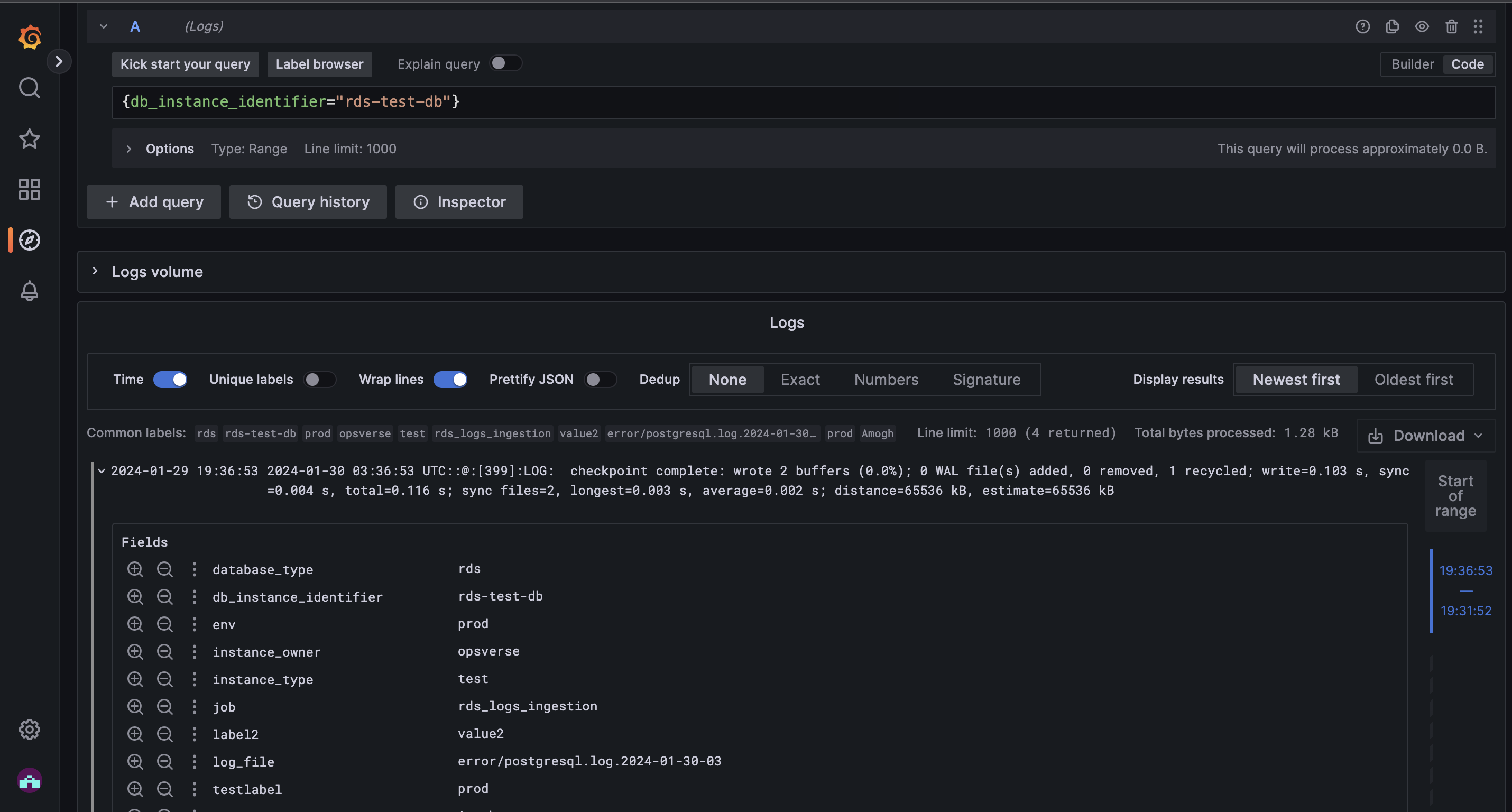
- Logs ingested in Loki, as viewed in Grafana.